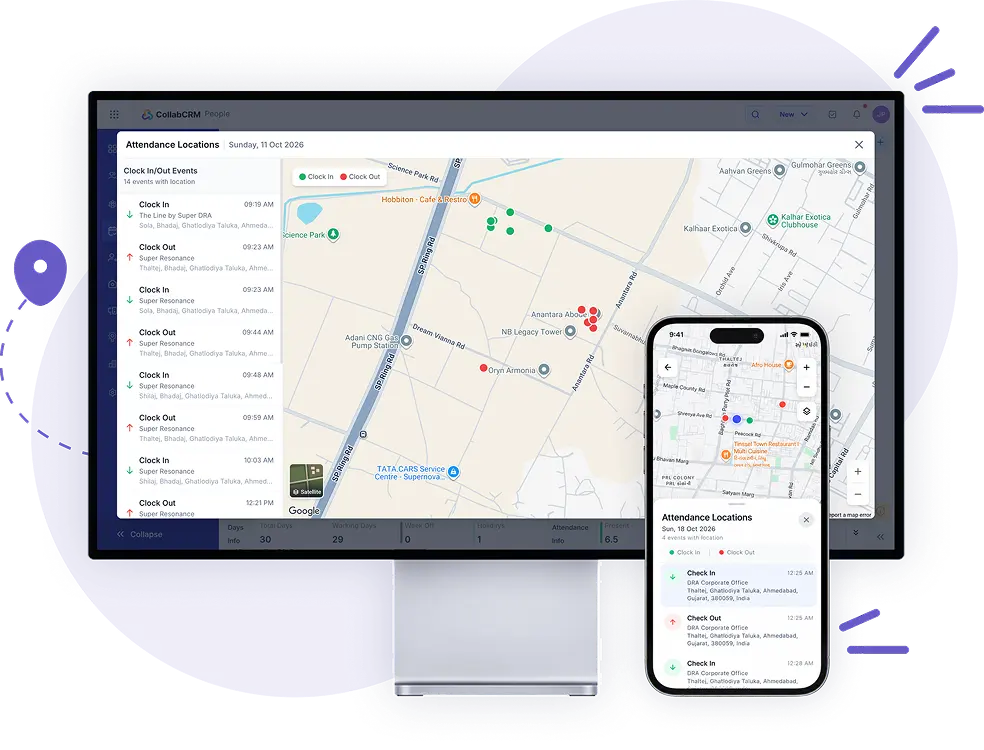
Set up automatic clock-in and clock-out
CollabCRM can clock you in when you arrive at work and out when
you leave, without opening the app. Turn on a few phone settings
once and it runs on its own.
Configure geofenced locations and assign employees
Before anyone can clock in automatically, an admin sets up one or more geofenced locations, each with a radius, and adds employees to them. Employees are only clocked in and out when they are inside a location assigned to them.
For Admin. This tab is for admins and HR. Employees should follow the Start setup tab after they are added.
Configure Geo-Fencing and set the radius
- Go to People -> Config -> Geo Locations -> Add Locations
- In the Choose location window, search for the location you want and set the radius, then click Select.
- To add more locations, click Add Location in the main page.
Choosing a radius. The radius is the distance around the location in which an employee counts as being at work. Set it wide enough to cover your whole office, building or site, including entrances.
Assign employees to a geofenced location
- Then Select Business Units, Departments, Employees for that particular geofenced location. Add employees to the geofenced radius you configured above.
- Click Save on the setup page and exit the page.
An employee who is not added to a geofenced location will not see the automatic clock-in setup card on the Attendance page.
Ask employees to allow permissions
Once this is done, the employees you added need to enable the permission settings on their own devices. Share the Start setup tab with them. It covers iPhone and Android.
Checklist: geo-fencing enabled, location and radius selected, employees added, saved, employees have allowed the permissions.
What automatic clock-in does
CollabCRM needs permission to check whether you are at a work location while the app is closed. Follow the steps below to turn on the required settings. You usually only need to do this once.
Your privacy. CollabCRM only checks whether you are inside or outside your assigned work locations. It does not track where else you go. You can still clock in and out manually whenever you want.
Before you start
Your admin must assign you a geo location. If you do not see a setup card on the Attendance page, ask your admin or HR to check your geo location assignment. Admins can follow the Configure geofence tab.
Open the setup screen
The setup screen opens automatically from Home when a setting still needs your attention. You can also open it from the card at the top of the Attendance page.
On the Clock in and out automatically screen, tap Continue. You can tap Not now and return later.
Allow location access
- Tap Allow While Using App and leave Precise on.
- When your iPhone asks again, choose Change to Always Allow. The second prompt may appear a few minutes later or the next day.
An iPhone does not offer Always in the first prompt. The location item stays on your setup list until you respond to the second prompt.
Change it yourself: Settings → CollabCRM → Location, choose Always, and turn on Precise Location.
- Tap While Using App.
- On the screen explaining why CollabCRM needs location access all the time, tap the button to open your phone’s settings.
- Choose Allow all the time and leave Use precise location on.
On Android 11 and newer, Allow all the time does not appear in the first prompt. The explanation screen appears only once.
Change it yourself: Settings → Apps → CollabCRM → Permissions → Location. On some phones the path differs:
| Brand | Path |
|---|---|
| Xiaomi | Apps → Manage apps → CollabCRM |
| vivo | More settings → Permission management → Location |
| OPPO, realme, OnePlus | App management → App list → CollabCRM |
| Huawei, Honor | Privacy → Permission manager → Location |
Allow Physical activity (Android, optional)
Automatic clock-in works without this permission. Allowing Physical activity can make your clock-out more accurate.
To save battery, your phone may stop checking your location when you are not moving. This permission helps it notice within seconds when you start moving again. Without it, you may travel a few hundred metres before your phone notices, so your clock-out may be late.
CollabCRM does not check what you are doing. It only uses the signal that your phone has started moving. You can turn this on later from Improve timing (optional) on the setup screen.
Set battery use and auto-start (Android)
If a setting needs to be changed, tap Open Settings next to it. Your phone may use different names. For battery use, choose an option that lets CollabCRM keep running.
Battery
Battery restrictions can delay clock-out because your phone may hold back CollabCRM until after you have left work. Choose Unrestricted, No restrictions, Don’t optimise, Don’t allow (battery optimisation), or Allow background activity. To find it yourself: Settings → Apps → CollabCRM → Battery.
Auto-start
Some phones prevent apps from starting automatically after a restart. If your phone needs this, an extra row appears on the setup checklist. Tap Open Settings and turn on auto-start for CollabCRM. It may be called Autostart, Startup manager, App launch, or Background start-up management. Pixel, Nokia, Motorola, and most standard Android phones do not need it.
Settings by phone brand
| Brand | Battery | Auto-start or related |
|---|---|---|
| Xiaomi, Redmi, POCO |
Battery saver → No restrictions | Turn on both Autostart and Background autostart. They are separate switches. |
| vivo, iQOO | Background power consumption management | Autostart, under Special app access |
| OPPO, realme | App battery management → Allow background activity | Startup manager, in the Security app |
| OnePlus | Battery → Allow background activity | Turn off Deep optimisation and Sleep standby optimisation under Advanced optimisation. |
| Samsung | Battery → Unrestricted | No auto-start setting. Add CollabCRM to Never sleeping apps instead. |
| Huawei, Honor | Battery optimisation → Don't allow | App launch → Manage manually → turn on all three switches. |
| Tecno, Infinix, itel | Battery Lab → turn off Power Saving Management For Apps | Auto-start management, in Phone Master |
| Pixel, Nokia, Motorola, other |
Battery → Unrestricted | No additional setting needed. |
Xiaomi: check both auto-start switches again if clock-outs stop after a system update.
Samsung: add CollabCRM to Never sleeping apps under Settings → Battery and device care → Battery → Background usage limits. Samsung may put the app to sleep weeks after setup.
Turn on Background App Refresh (iPhone)
Background App Refresh lets your iPhone wake CollabCRM to catch anything it missed.
- Go to Settings → CollabCRM and turn on Background App Refresh.
- If you do not see the switch, go to Settings → General → Background App Refresh, tap Background App Refresh again, and choose Wi-Fi & Cellular Data. Then return to Settings → CollabCRM and turn it on.
Wi-Fi & Cellular Data lets it refresh over Wi-Fi or mobile data. With Wi-Fi alone, it cannot refresh over mobile data when you are away from Wi-Fi.
Check that setup is complete
Return to the setup screen. The required settings should have checkmarks, and you should see:
Everything this phone needs is allowed. Automatic clock-in is running.
If a required row has no checkmark, tap it to see what is missing and open the relevant settings screen. Physical activity on Android is optional.
Troubleshooting
Clock-in works, but clock-out is missing or late
On Android, check the Battery setting in Step 4, make sure battery saver is off, and consider turning on Physical activity (Step 3). On Samsung, also check Background usage limits. Sometimes your phone’s operating system takes longer to notice that you have left, so your clock-out may appear late.
It worked for weeks, then stopped on Samsung
Go to Settings → Battery and device care → Battery → Background usage limits. Add CollabCRM to Never sleeping apps and remove it from Sleeping apps and Deep sleeping apps.
It stopped after a system update on Xiaomi
Check both auto-start switches in Step 4.
I never got the “Allow all the time” prompt on Android
Android shows the prompt only once. Set the permission yourself using the path in Step 2.
The app says “Battery saver is on”
Battery saver can slow location checks and background activity, so clock-in or clock-out may be late or missed. Automatic clock-in keeps running. Turn off Battery Saver under Settings → Battery → Battery Saver (or Low Power Mode on iPhone), or charge your phone. Many phones turn this mode on automatically when the battery is low.
The Clock In / Out button is greyed out
Your company may only allow clocking in at a work location. You may be outside it, your phone may not have reported its position recently, or Precise location may be off. Open the app and wait a few seconds to update your position.
I had no internet when I arrived
Your clock-in is saved and sent when you have a connection again.
I restarted my phone
CollabCRM starts watching again automatically if Auto-start is on for brands that need it (Step 4).
I do not see the setup card on the Attendance page
Your HR/Admin has not assigned you to a geofenced location yet. Ask your admin or HR to check your assignment (see the Configure geofence tab).
Why these settings matter
| Setting | What it does |
|---|---|
| Location on your phone | Your phone must have location on to detect when you arrive. |
| Always allow location | While using the app only works when CollabCRM is open on screen. |
| Precise location | Approximate location can be hundreds of metres off and may show that you are at work when you are still away. |
| Unrestricted battery use | Battery restrictions can delay clock-out until after you have left. |
| Auto-start (some Android phones) | Lets CollabCRM start again after you restart your phone. Without it, nothing is recorded until you open the app. |
| Physical activity (Android, optional) | Helps your phone notice when you start moving so it can clock you out as you leave. |
| Background App Refresh (iPhone) | Lets your iPhone wake CollabCRM to check whether it missed anything. |
Need help with your setup?
Ask your admin or HR to check your geo location assignment, or talk to the CollabCRM team.

Join the Future of Work Management Access Now Open!
An all-in-one system for growing IT teams to manage projects, people, and sales better.
Priority Onboarding
14 Days Free Trial
Try It Before The Rest Of The World